Docker for Self-Hosting: Compose Files, Volumes, Updates
Docker for self-hosting explained: what a compose file does, where volumes live, how to publish ports safely, and how to update containers without breakage.
⚡ The short version
Docker is worth it for self-hosting for one reason: a compose file makes a service reproducible, so the machine stops being precious. If you learn only three things here, make them named volumes (that is where your data is), binding published ports to 127.0.0.1 (or the firewall will not save you), and pinning image tags (or an update breaks something at 3 a.m.).
Most people meet Docker backwards. The install page handed you thirty lines of YAML and one command, it worked, and now you are afraid to touch it.
Docker for self-hosting is less about container technology than about three questions: whether to commit, where your data lives so you can back it up, and whether what you started is reachable from the internet. The answers are all in the file you copied.
What Docker Actually Buys a Self-Hoster
Mainly this: the machine stops being precious.
Installed natively, a service is an accumulation of decisions — which repository, which config path, which one-off fix you applied at midnight six months ago. As a compose file those decisions become one text file you can read, diff and copy to a new box. Apps also stop fighting over shared dependencies, because each brings its own.
The cost is a second vocabulary — images, volumes, networks, published ports — and updates nothing applies for you.
On a new box, plain Debian or Ubuntu with Docker assumes the least.
When You Do Not Need Docker
Some situations are genuinely better without containers.
One app, one box, a maintained native package. If the box exists to run one service and the project ships a package, install the package — updates arrive through the normal channel and there is one fewer layer to debug at 2 a.m. (Pi-hole on a dedicated Pi is the classic case; the Pi-hole setup guide covers both routes.)
Home Assistant. Home Assistant OS is right for most people: the Supervisor provides the add-on store, one-click updates and the backup manager, and a plain container gets the core with none of it. Take the container only if you already run a server full of them.
A NAS with its own app catalogue. Synology, QNAP, TrueNAS and Unraid all ship curated app systems, mostly Docker underneath, with the vendor handling packaging and updates. Using the catalogue instead of hand-writing a compose file is not cheating.
Installing Docker on a Home Server
The commands are in the $5 VPS setup guide. Four choices are worth making deliberately.
Script or apt repository. The install script does it in one line; adding the apt repository by hand takes five commands and shows what is added. Same packages either way: script on a box you would happily rebuild, manual on one you care about. The repository covers Ubuntu 22.04, 24.04 and 26.04, and Debian 11, 12 and 13 (checked 31 August 2026).
docker compose, not docker-compose. Compose ships as a plugin with Engine, so it is a subcommand with a space; the hyphenated form was Compose v1, a separate Python program Docker stopped supporting after June 2023 and dropped from Docker Desktop. docker version and docker compose version confirm what you have; on 31 August 2026 those were Engine 29.7.2 and Compose 5.5.0.
The docker group is root, with extra steps. Adding your user to it drops the sudo from every command. It also lets that account start a container that mounts the host's root filesystem and rewrite anything on the machine. Fine where you already hold sudo; not a way to give someone else limited access.
Rootless mode. No root daemon, but rootless containers cannot bind ports below 1024 until you set net.ipv4.ip_unprivileged_port_start=0 in /etc/sysctl.conf, or give the rootlesskit binary CAP_NET_BIND_SERVICE. Worth it where other people log into the box; on a single-account machine it buys less than it costs.
The licence. Engine on Linux is free and open source — the moby/moby source it is built from is Apache 2.0. The licence worry belongs to Docker Desktop, not to this.
The Compose File Is the Whole Point
A compose file describes a running system: which images, which storage, which environment, which ports. docker compose up -d makes reality match the file, and only what changed is recreated. Here is a single-container stack — Vaultwarden, about as small as a useful service gets.
services:
  vaultwarden:
    image: vaultwarden/server:<version>
    restart: unless-stopped
    environment:
      - DOMAIN=https://vault.example.com
      - SIGNUPS_ALLOWED=false
    volumes:
      - vw-data:/data
    ports:
      - '127.0.0.1:8080:80'

volumes:
  vw-data:
Line by line:
services:— the list of containers this file manages. Everything indented under it is one container.vaultwarden:— the service name, and not cosmetic: it becomes the container’s hostname on the compose network, so other services reach it asvaultwarden.image:— what to run, asrepository:tag. No tag means:latest, which is a habit worth breaking.restart:— behaviour after a crash or a reboot; see below.environment:— configuration passed into the container. This is how nearly every self-hosted app is configured; usually there is no config file to edit.volumes:— storage, and the same key appears at two indentation levels. Inside the service it readssource:path-inside-container, sovw-datashows up at/data. At the top level it declares those named volumes; miss it and Compose refuses to start with an undefined-volume error.ports:—host:container. Port 80 inside becomes 8080 on the host, and the127.0.0.1prefix does more work than it looks like.
If your file opens with version: "3.8", delete the line: Compose’s own file reference calls the top-level version property “only informative” and warns that it is obsolete when you use it.
💡 Ask Compose what it thinks the file says. docker compose config prints the fully resolved file: variables substituted, defaults filled in, obsolete keys flagged. When a stack misbehaves, it is the fastest way to discover that your .env is not being read.
A one-service file like that is the common case, not the beginner case: counting fifteen projects’ own compose files found seven of them declare exactly one service, and how many containers a self-hosted app actually needs has the count and the six reasons an app ever needs a second.
Now the shape everything larger takes: an app and its database. This is a cut-down illustration of that shape, not Immich’s file — the real one defines four services around a Postgres database, and it is the one to copy.
services:
  immich-server:
    image: ghcr.io/immich-app/immich-server:<version>
    restart: unless-stopped
    environment:
      - DB_HOSTNAME=database
      - DB_USERNAME=immich
      - DB_PASSWORD=${DB_PASSWORD}
    volumes:
      - /srv/photos:/usr/src/app/upload
    depends_on:
      - database
    ports:
      - '127.0.0.1:2283:2283'

  database:
    image: <the postgres image Immich specifies>:<version>
    restart: unless-stopped
    environment:
      - POSTGRES_USER=immich
      - POSTGRES_PASSWORD=${DB_PASSWORD}
      - POSTGRES_DB=immich
    volumes:
      - pgdata:/var/lib/postgresql/data

volumes:
  pgdata:
Three things there are the whole lesson. DB_HOSTNAME=database works because Compose puts both services on one network and resolves service names as hostnames. The database has no ports: block, because nothing outside the stack reaches it. And the two use different storage on purpose: a bind mount for photos you want on your own disk, a named volume for the database Docker should own.
Where you see <version>, put the tag the project’s release page currently shows. A tag printed in a guide is stale within weeks.
depends_on does less than it looks like. It controls start order, not readiness: Postgres takes a few seconds to accept connections after its container starts, so the app's first attempt can fail. Most apps retry.
Image tags, and why :latest is a habit worth breaking
:latest is not a version. It is a label pointing at whatever the project pushed most recently, so docker compose pull can hand you a breaking major release on a Tuesday. Pin the tag instead: image: someapp:2.4.1 means pull fetches nothing until you edit the file, so updating becomes something you decided to do, with a version to go back to. Tags matter more on ARM hardware like a Raspberry Pi: most popular images are multi-architecture, but not all, and the failure reads exec format error rather than anything helpful.
Restart policies: unless-stopped vs always
Both restart a container that crashes. They differ over one case: a container you deliberately stopped, on a machine that then reboots. unless-stopped leaves it stopped; always starts it again anyway, which is exactly how Docker documents the pair. unless-stopped is almost always right for self-hosting — “I turned that off on purpose” should survive a reboot. Pick always for something you would never intentionally leave stopped, like a DNS resolver, where a stopped container is always an accident.
Environment variables and the .env file
Anything like ${DB_PASSWORD} in a compose file is substituted from a file named .env in the same directory:
DB_PASSWORD=a-long-random-string
TZ=Europe/London
This is what lets the compose file go into Git while the secrets do not. Put .env in .gitignore and remember it is part of the backup — a compose file without its .env starts a stack that cannot log into its own database. Variables in the environment: block are read by the application; variables in .env are read by Compose when it parses the file. Not the same mechanism, which is why docker compose config ends the argument.
Volumes: Where Your Data Actually Lives
A container’s own filesystem is disposable. Update the image and the container is replaced by a new one built from scratch, so anything written inside it and not into a volume is gone. That is why the volumes: lines deserve the most attention in the file.
Named volumes — vw-data:/data. Docker creates and manages the storage; on Linux it lands under /var/lib/docker/volumes/, and docker volume inspect vw-data prints the exact path.
Bind mounts — /srv/photos:/usr/src/app/upload. You choose the host directory and it appears inside the container: ordinary files in an ordinary place, visible to ls, rsync and your file manager.
Which to use is not a matter of taste:
- Use a bind mount when you want the data as files you can see and handle: media libraries, photo originals, documents, config you edit by hand. It is also the only way to say “this lives on the big drive, not the boot SSD”.
- Use a named volume for databases. Docker handles the ownership, which sidesteps the permission fights bind mounts cause when the user inside the container has a different UID from the one outside. If you have ever set
PUIDandPGID, that is the problem you were solving — and if setting them changed nothing, which permission-denied error you actually have is the first thing to work out.
Both end up on the same filesystem, so this is not a performance decision but a question of who owns the directory.
⚠️ docker compose down -v deletes your data. down on its own removes the containers and leaves the volumes alone — that is how you restart a stack cleanly. Adding -v also removes every named volume declared in the file. No prompt, no undo. Bind mounts survive it.
The backup list is short enough to recite: the compose file, the .env beside it, and the contents of every volume. The rule is to back up the volume, not the container — and a database should be dumped with its own tool rather than copied while running. Getting a named volume’s contents into an archive at all takes a throwaway container; how to back up a Docker volume walks the commands and the restore test.
Publishing Ports Is the Part That Bites
ports: - '8080:80' means traffic arriving on port 8080 of the host is forwarded to port 80 inside the container. Left is the host, right is the container.
The part nobody mentions is what the left side means when you write it bare. 8080:80 is shorthand for 0.0.0.0:8080:80 — every network interface on the machine, including the one facing the internet. Not localhost. Not your LAN. Everything.
You cannot fix that with a firewall rule, because your firewall does not filter Docker’s published ports. Docker routes container traffic in the nat table, where its own documentation says packets are “diverted before it reaches the INPUT and OUTPUT chains that ufw uses”. ufw status reports the port as denied while the service answers strangers.
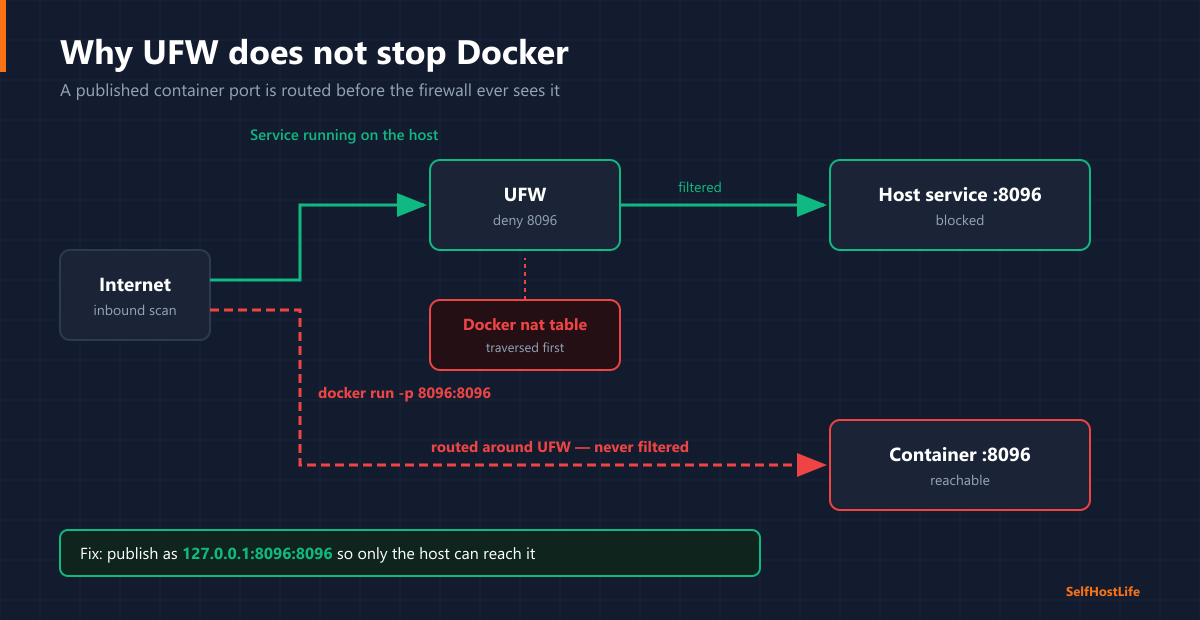
The fix is not a cleverer rule. It is publishing less.
Most containers need no published port at all. Every service in one compose file shares a network and can reach the others by service name. The database above is reachable from the app as database:5432 while being invisible to the rest of the machine. If a container is only ever spoken to by another container, delete its ports: block.
For the rest, bind to localhost and put one reverse proxy in front. Writing '127.0.0.1:8080:80' tells Docker to accept only connections originating on the host itself. The proxy — the one thing that genuinely holds 80 and 443 — reaches it fine, and is the only public surface you have to think about.
The exception worth naming is a service your other devices talk to directly, such as a media server on the LAN: that one publishes to the local network on purpose. Publishing to your LAN and forwarding a router port to it are still different decisions, and only the second puts it on the internet.
None of this decides who gets in once something is genuinely public. For a container whose image ships no login at all, an authentik forward-auth login is what stands in front of it.
To see what you have published, ask Docker rather than the firewall:
docker compose psRead the ports column. 0.0.0.0:8080->80/tcp is open to the world. 127.0.0.1:8080->80/tcp is host-only. Blank means the container publishes nothing, which for most of a stack is correct.
Updating Containers Without Breaking Things
The update is two commands, run in the directory holding the compose file:
docker compose pull
docker compose up -d
pull fetches images for the tags currently in your file. up -d recreates only the containers whose image changed. The containers are replaced; the volumes are attached to the new ones untouched.
This is where pinning pays for itself. On :latest, pull is a lottery; on a pinned tag it does nothing until you edit the file, so updating is deliberate — release notes, one line, up -d, and change the line back if it goes wrong. How much of a lottery depends on the project: SearXNG published 87 images across 22 separate days in September 2026 alone, so latest there is a different build most weeks.
Rolling back the image does not roll back the database. Plenty of apps run a one-way schema migration on first start after an upgrade, so the old tag leaves old code staring at a newer database. Take the backup before the update.
docker image prune clears untagged leftovers; -a also removes images for stacks you have temporarily stopped.
Watchtower is the tool older guides point you at for this. Its GitHub repository is archived, and its last release, v1.7.1, dates from November 2023 — checked 31 August 2026. The argument against pointing it at a database survives regardless: an unattended update is how people lose data. Pin tags, follow the release feeds, and run pull then up -d when you choose to.
Docker vs Podman vs LXC
| Runtime | What it actually is | Who should pick it | Main friction |
|---|---|---|---|
| Docker | Application containers, one process each, run by a root daemon | Almost every self-hoster — it is what the documentation and the forum answers assume | Root daemon, and published ports go around your firewall |
| Podman | The same images, no daemon, rootless by default | Fedora and RHEL users, where it is the distribution’s tool; anyone who needs no root daemon | podman compose is a thin wrapper that hands the work to docker-compose or podman-compose (Podman 6.1.0, August 2026) |
| LXC | System containers — a whole userspace with systemd, closer to a small VM | Proxmox users who want something to SSH into and apt install in |
No compose file, so no reproducibility — a hand-built machine again |
Docker wins on ecosystem, not on merit. Podman is good engineering; the reason to weigh it anyway is that every self-hosting guide assumes Docker, and being the person who translates is a cost you pay repeatedly. LXC is not competing — it answers “I want a small machine”, not “I want to run this app”.
Frequently Asked Questions About Docker for Self-Hosting
Do I need Docker to self-host?
No. Plenty of people run a media server from their distribution’s packages and never touch a container. What Docker adds is reproducibility: the service becomes a file you can read and copy instead of decisions you have forgotten. One app on one box with a maintained native package is a fair reason to decline; four or five services with conflicting dependencies is where going without becomes the harder path.
Is it docker compose or docker-compose in 2026?
docker compose, with a space. The hyphenated command was Compose v1, a separate Python program you installed yourself. Current Compose is a plugin that arrives with Docker Engine, so it is a subcommand rather than its own binary. If a guide tells you to install docker-compose separately, it is old enough that the rest of its advice deserves suspicion too.
Where does Docker store my data, and what do I back up?
Wherever the volumes line in your compose file says. A named volume like vw-data:/data sits under Docker’s own directory, and docker volume inspect prints the exact path. A bind mount like /srv/photos:/usr/src/app/upload is the host path you chose. Back up three things: the compose file, the .env beside it, and the contents of every volume. Dump databases with their own tool rather than copying them while running.
Does my firewall protect Docker containers?
Not for published ports, and the fix is a compose file change rather than a firewall rule. If nothing outside the stack talks to a container, delete its ports block; services on one compose network reach each other by service name. For the rest, publish to 127.0.0.1 so only the host can connect. Docker’s forwarding rules run before the ones UFW manages, so a deny rule on a published port changes nothing.
Should I use Watchtower to update containers automatically?
No, and the maintenance question now settles it: Watchtower’s GitHub repository is archived and its last release, v1.7.1, dates from November 2023, checked 31 August 2026. The older objection stands on its own anyway — an unattended update can apply a one-way schema migration at three in the morning, and rolling the image back does not roll the migration back. Pull and recreate when you choose to instead.
Do I need Docker Desktop on a home server?
No, and it does not belong there. Docker Desktop runs a Linux virtual machine so macOS and Windows can host containers; on a Linux server you install Docker Engine and there is nothing to virtualise. Desktop also carries commercial-use licence terms above a certain organisation size, which Engine on Linux does not. On a headless box it is overhead plus a licence question you never needed to ask.
Should I use Podman instead of Docker?
Pick Podman if you are on Fedora, RHEL or a rebuild, where it is the distribution’s supported container tool, or if running without a root daemon genuinely matters on your machine. The friction is that most self-hosting documentation assumes Docker, so when a copied stack misbehaves you are the one working out whether it is the app or the runtime.
The Bottom Line
🐳 Takeaway: Learn the compose file and you have learned Docker for self-hosting. Three lines carry almost all the consequence. volumes: is where your data is, so it is what you back up — and docker compose down -v deletes the named ones. ports: published bare means the whole internet, and your firewall will not stop it; bind to 127.0.0.1 and let one reverse proxy be public. image: pinned to a real tag turns updating from something that happens to you into something you chose.
How This Guide Was Researched
Checked against primary sources on 31 August 2026:
- Watchtower confirmed via
api.github.com/repos/containrrr/watchtoweron 31 August 2026: the repository is archived, and its most recent release, v1.7.1, dates from November 2023 - Engine 29.7.2 and Compose 5.5.0 from the
moby/mobyanddocker/composerelease APIs, and Podman 6.1.0 from its own; Compose v1’s June 2023 end of support from Docker’s deprecation announcement; the obsoleteversion:key, restart-policy semantics, rootless mode’s privileged-port restriction and the supported Ubuntu and Debian releases from Docker’s documentation; Immich’s four-service, Postgres-backed stack from its officialdocker-compose.yml - The published-port behaviour from Docker’s packet filtering and firewalls documentation, the only source worth quoting on it
- No RAM or disk overhead figures appear here, because none were measured. Run
docker statson your own machine — the number that matters is yours
Container tooling moves. Check the project’s documentation before following any guide, this one included.
Product links on this site are plain links. We earn nothing from them — see our disclosure policy.