Vaultwarden: Self-Host a Free Bitwarden Server (2026)
Vaultwarden is a lightweight, Bitwarden-compatible password server you run yourself. Free premium features, ~30 MB of RAM, and a 15-minute Docker setup.
⚡ What You’ll Build
By the end of this guide you’ll run your own password manager on your own server — fully compatible with every official Bitwarden app, with premium features free, for the cost of a $5 VPS. Vaultwarden self-hosting puts your most sensitive data (every password you own) on hardware you control instead of a company’s cloud. It installs in about 15 minutes and uses around 30 MB of RAM.
Your password vault is the most sensitive data you own — so why store it on a company’s servers? Vaultwarden is the answer: a lightweight, open-source password manager that works with all the official Bitwarden apps you already know, but runs entirely on your own server. You get the premium features Bitwarden charges for, completely free, and your encrypted vault never leaves hardware you control. This guide walks through the whole setup from scratch.
What Is Vaultwarden?
Vaultwarden (formerly bitwarden_rs) is an open-source reimplementation of the Bitwarden server, written in Rust. It’s community-maintained and not officially affiliated with Bitwarden Inc., but it implements the same server API — so every official Bitwarden client (browser extensions, desktop apps, iOS, Android, CLI) connects to it unchanged.
The key difference is weight. The official Bitwarden server needs around 11 Docker containers and substantial RAM. Vaultwarden does the same job in a single container using roughly 30 MB of RAM — light enough to run on a Raspberry Pi or the cheapest VPS.
💡 Free premium features: Self-hosting Vaultwarden unlocks the features Bitwarden normally charges for — TOTP authenticator codes, file attachments, organizations, and Bitwarden Send — at no cost, because you’re running the server yourself. Bitwarden Premium rose to $19.80/year in January 2026 (up from $9.99), and the free tier lost integrated TOTP at the same time — so self-hosting Vaultwarden is now an even better deal.
Why Self-Host Your Password Manager?
- Total data ownership. Your encrypted vault lives on your server, not a third party’s. Note that Bitwarden encrypts vaults client-side regardless, but self-hosting removes the company from the equation entirely.
- No subscription. Premium features are free. Your only cost is the server you may already run for other self-hosted apps.
- Full Bitwarden compatibility. You keep using the same polished official apps — nothing about the day-to-day experience changes.
- Tiny footprint. At ~30 MB RAM, it runs alongside everything else on a small server without strain.
It’s the app I recommend as your first self-hosting project — small, genuinely useful, and a perfect way to learn the workflow.
Before You Start
You’ll need three things:
- A server with Docker. A VPS (512 MB RAM is enough; 1 GB comfortable) or a home machine running Ubuntu 22.04/24.04.
- A domain name. Vaultwarden requires HTTPS — the Bitwarden clients refuse to connect over plain HTTP — and HTTPS needs a domain. A cheap domain is fine.
- About 15 minutes. That’s genuinely all this takes on a fresh server.
No server yet? Set one up with the $5 VPS guide first, then come back.
How to Self-Host Vaultwarden
STEP 1 Point Your Domain at the Server
In your domain’s DNS settings, add an A record pointing a subdomain to your server’s IP address:
vault.yourdomain.com → your.server.ip.addressThis subdomain is where your vault will live. DNS can take a few minutes to propagate.
STEP 2 Install Docker and Docker Compose
If Docker isn’t already on your server, install it with the official convenience script:
curl -fsSL https://get.docker.com | shVerify it’s running:
sudo docker --versionSTEP 3 Create the Vaultwarden Compose File
Make a folder and a docker-compose.yml file. Using Caddy as a companion gives you automatic HTTPS with zero certificate hassle:
mkdir -p /opt/vaultwarden && cd /opt/vaultwardenIn docker-compose.yml, define Vaultwarden plus Caddy. The essentials for the Vaultwarden service are the image vaultwarden/server:latest, a volume ./vw-data:/data, and the environment variable DOMAIN=https://vault.yourdomain.com. Set SIGNUPS_ALLOWED=true for now so you can create your account — you’ll lock this down in Step 6.
STEP 4 Start Vaultwarden
Launch the stack:
sudo docker compose up -dCaddy automatically requests a free Let’s Encrypt TLS certificate for your domain. Within a minute, your vault is live and encrypted at https://vault.yourdomain.com.
⚠️ HTTPS is mandatory. Bitwarden clients refuse to connect over plain HTTP — they require a valid HTTPS certificate. This is why you need a domain and a reverse proxy like Caddy. Trying to use a bare IP over HTTP will fail to log in.
STEP 5 Connect Your Bitwarden Apps
This is the satisfying part — you use the normal official Bitwarden apps, just pointed at your server. On any client (browser extension, desktop, or mobile):
- On the login screen, find the Region or server-settings option.
- Choose ‘Self-hosted’.
- Enter your Server URL: https://vault.yourdomain.com
- Create your account and log in. Done — it behaves exactly like Bitwarden cloud, because the client is Bitwarden.
Already use Bitwarden or another manager? Export your existing vault first, then import it into Vaultwarden after signup.
STEP 6 Lock It Down
Two quick hardening steps turn this from ‘working’ into ‘secure’:
- Disable open signups. Once your account exists, set SIGNUPS_ALLOWED=false and restart, so no stranger can register on your server.
- Protect the admin panel. Set a long random ADMIN_TOKEN to secure the /admin page, and enable Argon2 for password hashing.
For the full hardening picture — SSH keys, firewall, fail2ban, and keeping the vault off the public internet entirely with Tailscale — follow the server security guide.
⚠️ Back up your vw-data folder. Everything — your entire encrypted vault — lives in the vw-data folder. Automate a backup of it from day one. No company is keeping a copy for you, so if that folder is lost and not backed up, your passwords are gone.
Vaultwarden vs Bitwarden Cloud vs 1Password
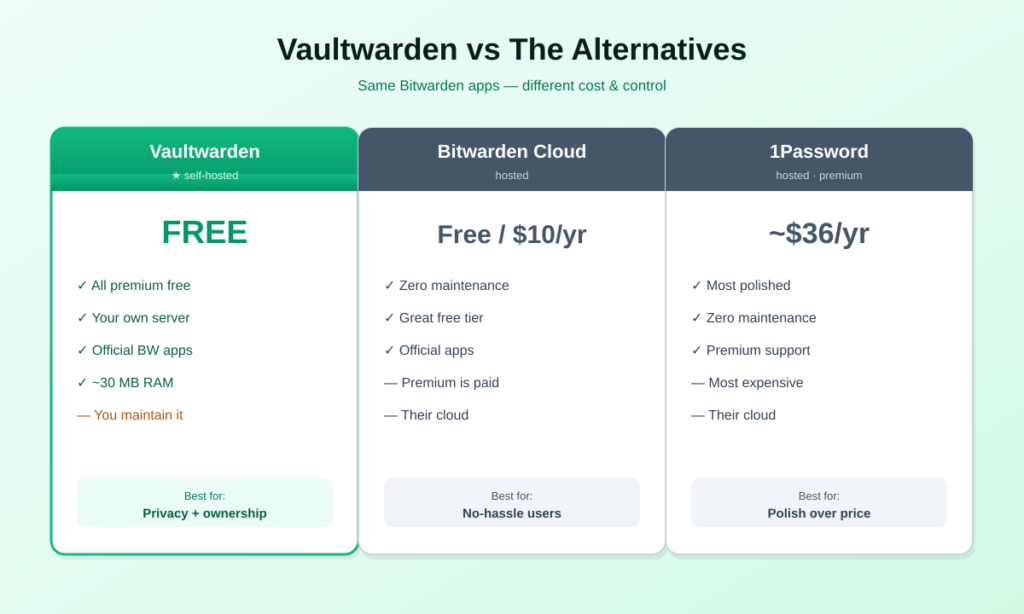
| Vaultwarden | Bitwarden Cloud | 1Password | |
|---|---|---|---|
| Cost | Free (self-host) | Free / $19.80/yr | ~$36/yr |
| Premium features | All free | Paid tier | Included |
| Data location | Your server | Their cloud | Their cloud |
| Official apps | Yes (Bitwarden) | Yes | Yes |
| Maintenance | You (minimal) | None | None |
The honest trade: Vaultwarden is free and private but you maintain it. Bitwarden Cloud’s free tier is genuinely good if you don’t want to run a server. 1Password is the most polished but the most expensive and fully cloud-based. Vaultwarden wins when you value ownership and already run a server.
Frequently Asked Questions About Vaultwarden Self-Hosting
Is Vaultwarden safe to self-host?
Yes, when set up correctly. Vaultwarden uses the same client-side encryption as Bitwarden — your vault is encrypted on your device before it ever reaches the server. Combined with HTTPS, a firewall, disabled open signups, and ideally keeping it off the public internet via Tailscale, it’s a secure setup. The main responsibility you take on is backups.
Is Vaultwarden the same as Bitwarden?
Not exactly. Vaultwarden is an independent, open-source reimplementation of the Bitwarden server API, written in Rust. It is not made by Bitwarden Inc., but because it speaks the same API, all official Bitwarden client apps work with it unchanged. Think of it as a lightweight, self-hostable Bitwarden-compatible server.
Is Vaultwarden free?
Yes. Vaultwarden is completely free and open source, and self-hosting it unlocks the premium features Bitwarden normally charges for (TOTP, file attachments, organizations, Send) at no cost. Your only expense is the server it runs on — often one you already have.
Do I need a domain name for Vaultwarden?
Effectively yes. Bitwarden clients require HTTPS to connect, and a valid HTTPS certificate needs a domain. A cheap domain plus a reverse proxy like Caddy (which gets free Let’s Encrypt certificates automatically) solves this. Running over a bare IP on HTTP will not work with the clients.
How much RAM does Vaultwarden use?
Very little — around 30 MB at idle. That’s a fraction of the official Bitwarden server, which needs roughly 11 containers and far more memory. Vaultwarden runs comfortably on a Raspberry Pi or the smallest VPS, alongside your other self-hosted apps.
Can I migrate from Bitwarden or another password manager?
Yes. Export your existing vault from Bitwarden, 1Password, LastPass, or wherever you currently store passwords, then import the file into Vaultwarden after you create your account. All official Bitwarden clients include the import tool.
What happens to my passwords if my server fails?
They’re only safe if you back up the vw-data folder, which holds your entire encrypted vault. Automate that backup from day one. Unlike a cloud service, no company keeps a copy for you — backups are your responsibility, and they’re essential.
The Bottom Line
🛡️ Takeaway: Vaultwarden self-hosting gives you a free, private, fully Bitwarden-compatible password manager on hardware you control. It installs in about 15 minutes, sips ~30 MB of RAM, and unlocks premium features at no cost. It’s the ideal first self-hosting project — small enough to finish in an afternoon, useful enough that you’ll rely on it daily. Just remember: HTTPS is required, and backing up the vw-data folder is non-negotiable.
New to this? Start with self-hosting explained, then secure your server with the security guide and Tailscale. See what else to run in 10 self-hosted apps.
How This Guide Was Researched
- Vaultwarden architecture (Rust, single container, ~30 MB RAM, Bitwarden API compatibility) verified against the official Vaultwarden project and multiple 2026 setup guides
- HTTPS requirement and Caddy reverse-proxy approach confirmed across independent walkthroughs
- Bitwarden Premium pricing ($19.80/year as of January 2026) and free-tier TOTP removal verified across multiple independent sources
- Setup tested conceptually against the $5 VPS and security guides on this site
Self-hosted software changes — always check the official Vaultwarden documentation for the latest configuration. Vaultwarden has no affiliate program; this guide earns nothing from it.
Questions about your setup? Email hello@selfhostlife.com.
Product links on this site are plain links. We earn nothing from them — see our disclosure policy.