Nginx Proxy Manager: The Easy Reverse Proxy Setup (2026)
A reverse proxy puts your self-hosted apps on real domains with real HTTPS. Nginx Proxy Manager does it from a web UI — setup, gotchas, and when Caddy wins.
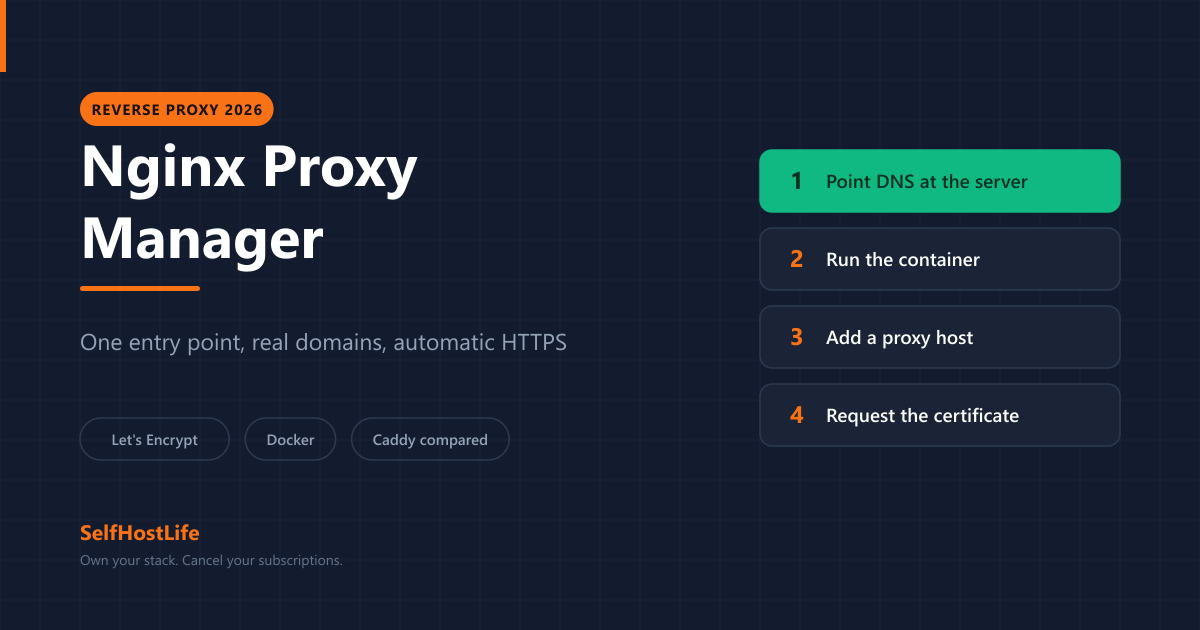
⚡ The short version
A reverse proxy is the piece that turns 203.0.113.10:8096 into media.yourdomain.com with a padlock on it. It listens on ports 80 and 443, reads the hostname, and hands the request to the right container. Nginx Proxy Manager does this from a web interface — no config files — and fetches free Let's Encrypt certificates for you. Caddy does the same job in about four lines of text if you would rather not click. Pick by which one you will actually maintain.
Every self-hosting guide ends the same way: “now put it behind HTTPS.” Nobody explains what that means. A reverse proxy is the answer, and once you have one running, every app you add afterwards is a two-minute job instead of a fresh problem. This guide covers what a reverse proxy does, how to set up Nginx Proxy Manager — the friendliest option — and the cases where Caddy is the better pick.
If you have not connected a domain yet, do that first: pointing a domain at your server is the prerequisite for everything below.
What a Reverse Proxy Actually Does
You have three apps on one server. Jellyfin is on port 8096, Vaultwarden on 8080, Immich on 2283. Without a proxy, you reach them by typing the IP and the port, none of them can have a certificate, and you have to remember which number is which.
A reverse proxy fixes all of that by being the only thing listening on ports 80 and 443. Every request arrives there first, and it decides where to send it based on the hostname the browser asked for:
media.yourdomain.com → container on port 8096
vault.yourdomain.com → container on port 8080
photos.yourdomain.com → container on port 2283
One public entry point. One certificate per hostname, issued and renewed automatically. Your apps stop being exposed directly to the internet, which is a security improvement on its own.
That last point matters more than the tidy URLs. With a proxy in front, your applications only listen on the internal Docker network. Nothing but the proxy is reachable from outside, so a vulnerability in an app is not automatically a vulnerability on your server’s public interface.
Why HTTPS forces the issue
You cannot get a normal TLS certificate for a bare IP address — certificate authorities issue them for domain names. So the moment you want a padlock, you need a domain, and the moment you have a domain pointing at a server running more than one thing, you need something to route by hostname.
Some apps refuse to work without it at all. Vaultwarden will not let the Bitwarden clients connect over plain HTTP, by design — it holds your passwords, so it insists on encryption. Nextcloud expects HTTPS for its mobile apps.
Nginx Proxy Manager vs Caddy vs Plain Nginx
Three realistic options, and the honest difference is not performance. At home-server scale — a handful of services, a few users — all three are fast enough that you will never measure the difference. The difference is how you configure them and what happens when something breaks.
| Nginx Proxy Manager | Caddy | Plain Nginx | |
|---|---|---|---|
| Configured by | Web interface | One text file | Config files per site |
| HTTPS | Automatic (Let’s Encrypt) | Automatic, on by default | Manual (certbot) |
| Learning curve | Lowest | Low | Steepest |
| Version control | Config lives in a database | Plain text, commit it | Plain text, commit it |
| Extra moving parts | Web UI, database | None | Certbot, cron |
| Best for | People who want to click | People who want a file | People who already know Nginx |
💡 The real deciding question. Do you want your proxy configuration to be a file you can put in Git and redeploy anywhere, or a web interface you log into? Nginx Proxy Manager stores its configuration in a database, which means rebuilding it somewhere else is a restore job rather than a copy-paste. Caddy's whole configuration for five services fits on a screen and lives in your repository. Neither is wrong — but pick knowingly, because migrating later is annoying.
Plain Nginx is the honest third option and mostly the wrong one for a first server. It is what both of the others are built on or around, it is enormously capable, and it will make you learn certbot, renewal timers, and a configuration syntax with real edge cases — before you have run a single app.
Setting Up Nginx Proxy Manager
STEP 1 Point DNS at your server first
This is the step people skip and then spend an hour debugging certificates. Create an A record for each hostname you want, pointing at your server’s public IP, and let it propagate before you go any further.
A    vault     203.0.113.10
A    media     203.0.113.10
A    photos    203.0.113.10
A wildcard record (*) works too and saves adding one per app. Confirm it resolves before continuing — dig vault.yourdomain.com should return your server’s address.
STEP 2 Run the container
Create docker-compose.yml. This is the official configuration, pinned to a specific version rather than latest so an unattended update cannot break your entry point:
services:
  npm:
    image: 'jc21/nginx-proxy-manager:2.15.1'
    restart: unless-stopped
    ports:
      - '80:80'      # HTTP — Let's Encrypt needs this
      - '443:443'    # HTTPS
      - '127.0.0.1:81:81'  # admin UI, localhost only
    volumes:
      - ./data:/data
      - ./letsencrypt:/etc/letsencrypt
Then start it:
docker compose up -dFirst run takes a couple of minutes: it generates keys, initialises its database, and creates a default admin account. It uses SQLite by default, which is the right choice for a home server — MySQL, MariaDB and PostgreSQL are supported if you already run one.
⚠️ Note the admin port binding. The official example publishes port 81 on all interfaces. The compose file above binds it to 127.0.0.1 instead, so the admin interface is only reachable from the server itself. Reach it by SSH tunnel (ssh -L 81:localhost:81 you@server) or over a VPN. An administration panel that can issue certificates and route your traffic has no business being open to the internet.
STEP 3 Log in and change the credentials
Open http://localhost:81 through your tunnel. The container creates a default administrator account on first run — the current credentials are listed on the official setup page. Change the email and password before you do anything else.
STEP 4 Add your first proxy host
Hosts → Proxy Hosts → Add Proxy Host. Four fields matter:
- Domain Names:
vault.yourdomain.com - Scheme:
http— the connection from the proxy to your app stays inside Docker and does not need its own certificate - Forward Hostname / IP: the container name, e.g.
vaultwarden - Forward Port: the app’s internal port, e.g.
80
Then the SSL tab: choose Request a new SSL Certificate, tick Force SSL so HTTP redirects to HTTPS, and save. The certificate is issued in a few seconds and renews itself from then on.
💡 Put the proxy and your apps on the same Docker network. Forwarding to a container name only works if they can see each other. Either define your apps in the same compose file, or create a shared external network and attach both. Forwarding to 127.0.0.1 will not work — inside the proxy container, that is the proxy itself.
When Caddy Is the Better Choice
Our $5 VPS guide uses Caddy rather than Nginx Proxy Manager, and that is deliberate. On a small server where you are already in the terminal, the entire proxy is this:
vault.yourdomain.com {
    reverse_proxy vaultwarden:80
}

media.yourdomain.com {
    reverse_proxy jellyfin:8096
}
That is the whole configuration. HTTPS is automatic and on by default — there is no certificate step to forget. The file goes in Git next to your compose file, so rebuilding the server is a clone and a docker compose up.
✅ Choose Nginx Proxy Manager
- You would rather use a UI than edit files
- You are managing hosts for other people
- You want to see certificate status at a glance
- Editing YAML over SSH sounds unpleasant
❌ Choose Caddy instead
- You want the config in version control
- You are running a small, fixed set of services
- You want the fewest moving parts
- You value rebuilding from a repo in minutes
Problems You Will Probably Hit
The certificate request fails. Nearly always DNS or port 80. Let’s Encrypt validates by connecting to your server over port 80 on the exact hostname requested. If the DNS record has not propagated, or port 80 is closed, or something else already holds it, validation fails. Check dig first, then confirm nothing else is bound to 80.
Everything returns 502 Bad Gateway. The proxy is running but cannot reach the app. Ninety percent of the time the two containers are not on the same Docker network, or the forward port is the host port rather than the app’s internal one. Use the port the app listens on inside its container.
Websockets break. Live-updating interfaces — Home Assistant dashboards, chat apps, Immich’s upload progress — need Websockets Support enabled per proxy host. It is a toggle in the host’s settings and it is off by default.
Redirect loops on HTTPS. Usually an app configured to force its own HTTPS while sitting behind a proxy that has already terminated TLS. Let the proxy handle certificates and tell the app it is running behind one.
⏱️ Before you expose anything. A reverse proxy makes your services reachable from the internet, which is the point and also the risk. Make sure the server itself is hardened first — SSH keys instead of passwords, a firewall allowing only 22, 80 and 443, and automatic security updates. And consider whether you need public exposure at all: if only you will ever use these services, reaching them over Tailscale is simpler and leaves nothing exposed.
Is Nginx Proxy Manager Still Maintained?
Worth asking before you put it in front of everything you run. As of 30 August 2026: version 2.15.1, released 3 June 2026, with commits in the repository the previous day and around 34,000 GitHub stars. It is actively developed.
The honest caveat is a large open-issue count — several hundred at the time of writing. For the core job, proxying hostnames and managing Let’s Encrypt certificates, it is stable and very widely deployed. For unusual configurations, expect to find open issues rather than answers.
Caddy, for comparison, was at 2.11.4 on the same date with roughly 75,000 stars. Both are safe choices; neither is going away.
Frequently Asked Questions About Reverse Proxies
What does a reverse proxy actually do?
It sits in front of your apps and decides where each request goes based on the hostname. Without one, every service needs its own port and you reach them as 203.0.113.10:8096. With one, vault.yourdomain.com and photos.yourdomain.com both arrive on port 443 and get routed to the right container, with a real certificate on each.
Do I need a reverse proxy to self-host?
Not to run apps on your own network, but yes for anything you reach from outside with HTTPS. Certificate authorities issue certificates for domain names, not bare IP addresses, and several self-hosted apps refuse to work without HTTPS at all — Vaultwarden is one. If you only ever reach services over a VPN like Tailscale, you can skip it.
Nginx Proxy Manager or Caddy?
Nginx Proxy Manager if you want a web interface and would rather click than edit a config file. Caddy if you already live in a terminal and want the whole proxy described in a few lines you can put in version control. Both get free Let’s Encrypt certificates and renew them automatically. Neither is meaningfully faster than the other at home-server scale.
Is Nginx Proxy Manager still maintained?
Yes. Version 2.15.1 shipped on 3 June 2026 and the repository had commits within the last day as of 30 August 2026. It carries a large open-issue count, which is worth knowing before you rely on it for anything unusual, but the core proxy-and-certificate job is stable and widely used.
Is it safe to expose port 81?
No. Port 81 is the admin interface and it should never be reachable from the internet. Bind it to localhost, restrict it with a firewall rule, or reach it over a VPN. The only ports that belong on the public internet are 80 and 443.
Why does my certificate request keep failing?
Almost always DNS or port 80. Let’s Encrypt has to reach your server over port 80 on the exact hostname you asked for, so the DNS record must already resolve to your server’s public IP and port 80 must be open and forwarded to the proxy. Check the record has propagated before requesting the certificate, not after.
Can I run a reverse proxy for a home server behind CGNAT?
Not the usual way. If your ISP puts you behind CGNAT you have no public IP to point a domain at, so Let’s Encrypt cannot reach you over port 80. Use DNS-01 certificate validation if your DNS provider supports it, or skip public exposure entirely and reach your services over a VPN instead.
About This Guide
Version and maintenance figures were checked directly against the project sources on 30 August 2026:
- Nginx Proxy Manager 2.15.1, released 3 June 2026, via the GitHub releases API
- Caddy 2.11.4 on the same date, for comparison
- The compose configuration and supported databases from the official setup documentation, with the admin port rebound to localhost
- Default administrator credentials are deliberately not reproduced here — they are on the official setup page, and reprinting them in a guide that ages is how people end up with stale instructions
Self-hosted software moves quickly. Check the project’s own documentation for the current version before you deploy.
Product links on this site are plain links. We earn nothing from them — see our disclosure policy.