How to Set Up Tailscale for Self-Hosting (Step-by-Step 2026 Guide)
Tailscale self-hosting made simple: a step-by-step 2026 guide to accessing your home server securely from anywhere — no open ports, no public IP, free.
⚡ What You’ll Build
By the end of this guide, you’ll reach your self-hosted server and apps from anywhere — your phone on cellular, your laptop at a cafe — without opening a single port to the internet. Tailscale self-hosting means your services stay completely invisible to attackers while remaining instantly available to you. It’s free, takes about 15 minutes, and is the single biggest security upgrade most self-hosters can make.
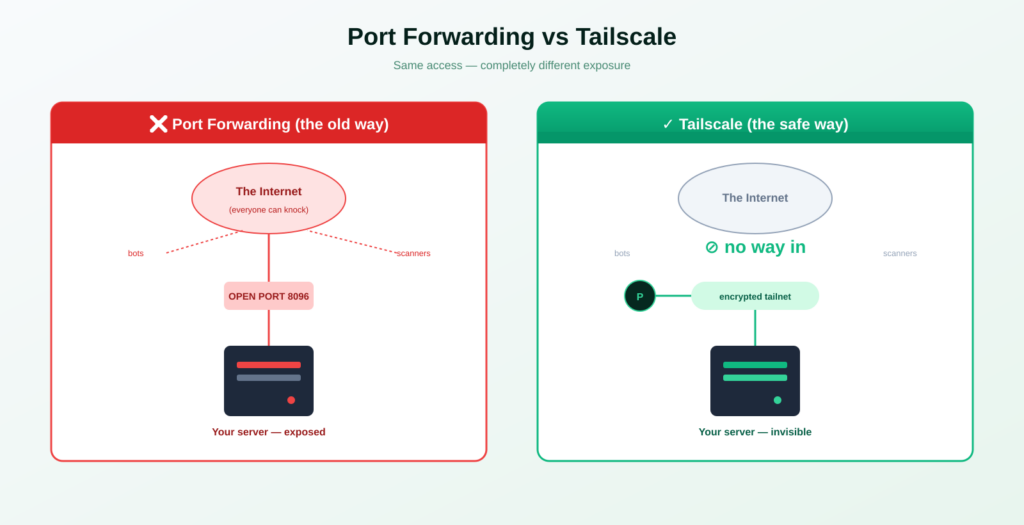
Tailscale self-hosting solves the trickiest part of running your own server: reaching it safely from outside your home. The old way — forwarding ports on your router and exposing services to the public internet — invites the constant automated attacks every server faces. Tailscale takes a completely different approach: it builds a private, encrypted network between just your own devices, so your server has zero public exposure but feels like it’s on your local network everywhere you go.
What Is Tailscale and Why Use It for Self-Hosting?
Tailscale is a mesh VPN built on WireGuard, the modern, fast, secure VPN protocol. Instead of routing all your traffic through one central server like a traditional VPN, it creates direct encrypted connections between your devices — your phone, laptop, and home server all join a private network called a ‘tailnet.’ Each device gets a stable private IP (in the 100.x.x.x range) that works from anywhere.
For self-hosting, this is transformative. Your apps bind to the Tailscale network instead of the public internet. The result:
- Zero open ports. Nothing is exposed to the internet, so automated scanners and brute-force bots simply can’t find your server.
- No public IP or domain needed. Works even behind CGNAT (common with home internet and mobile hotspots) where port forwarding is impossible.
- Access from anywhere. Your phone on 5G reaches your home server as if you were on your couch.
- Encrypted end to end. All traffic between your devices is WireGuard-encrypted automatically.
This is the ‘Option B’ approach from my server security guide — here we set it up in full detail.
Is Tailscale Free for Self-Hosting?
Yes. The Personal plan is free forever and, after an April 2026 pricing update, is more generous than ever: up to 6 users and unlimited devices per tailnet. For a typical home setup — your devices plus a server or two — you’ll never hit a limit. (Paid plans exist for businesses needing SSO, audit logging, and the like, but personal self-hosting doesn’t need them.)
Before You Start
You’ll need two things:
- A server running your self-hosted apps. A VPS or a home machine, with you able to access a terminal on it.
- The device you’ll connect from. Your phone, laptop, or both.
Don’t have a server yet? Start with the $5 VPS guide or a home mini PC, then come back here.
How to Set Up Tailscale for Self-Hosting
STEP 1 Create a Free Tailscale Account
Go to tailscale.com and sign up for the free Personal plan. You log in with an existing identity provider (Google, Microsoft, GitHub, etc.) — there’s no separate password to manage. This account ties your devices together into your private tailnet.
STEP 2 Install Tailscale on Your Server
On your server’s terminal, install Tailscale with the official one-line script:
curl -fsSL https://tailscale.com/install.sh | shThen bring Tailscale up and authenticate:
sudo tailscale upThe terminal prints a URL. Open it in any browser, log in with the same account from Step 1, and your server joins the tailnet. Confirm its Tailscale IP with:
tailscale ip -4You’ll get an address like 100.x.x.x — write it down. That’s how you’ll reach this server from your other devices.
STEP 3 Install Tailscale on Your Phone and Laptop
Install the Tailscale app on every device you want to connect from:
- Phone: Tailscale app from the App Store or Google Play, then sign in.
- Laptop: Download from tailscale.com for Mac/Windows/Linux, then sign in.
Sign in with the same account each time. Within seconds, every device appears in your Tailscale admin console, each with its own 100.x.x.x address. They can now all reach each other — encrypted — no matter what network they’re on.
STEP 4 Access Your Self-Hosted Apps
Now the payoff. Say you run an app on your server at port 8096 (Jellyfin, for example). From your phone or laptop — anywhere in the world — open:
http://100.x.x.x:8096(using your server’s Tailscale IP). It just works, encrypted, with no port forwarding and nothing exposed publicly. Every self-hosted app you run is now reachable this way.
💡 Nicer URLs with MagicDNS: In the Tailscale admin console, enable MagicDNS to reach devices by name instead of IP — e.g. http://myserver:8096 instead of the 100.x.x.x address. It’s a free toggle and makes daily use much smoother.
STEP 5 Lock Down the Public Ports You No Longer Need
This step is what makes Tailscale a security upgrade rather than just a convenience. Now that you reach everything through the tailnet, close the public ports you previously opened. With a UFW firewall, deny direct public access while still allowing the Tailscale interface:
sudo ufw allow in on tailscale0
sudo ufw deny 8096
Repeat for any app ports you’d exposed. You can even restrict SSH to Tailscale only, so port 22 stops responding on your public IP entirely — which, in real-world testing, drops automated attack attempts to zero.
⚠️ Keep one safety line open. Before restricting SSH to Tailscale only, confirm you can SSH in over the Tailscale IP first. Test the new path in a second terminal before closing the public one, so you never lock yourself out.
Verify It’s Working
Two quick checks confirm a healthy Tailscale self-hosting setup:
- Connectivity: From your phone on cellular (Wi-Fi off), open an app via the server’s 100.x.x.x address. If it loads, your tailnet works from anywhere.
- Invisibility: From a device NOT on your tailnet, try your server’s public IP and old port. It should time out — proof the service is no longer publicly exposed.
What to Do With Tailscale Self-Hosting
Once your tailnet is running, it quietly powers everything:
- Private app access. Jellyfin, Nextcloud, dashboards, databases — all reachable only by you, from anywhere.
- Secure remote SSH. Administer your server without exposing port 22 to the world.
- Exit nodes. Route your phone’s internet through your home connection on untrusted public Wi-Fi.
- Share with family. Tailscale’s node sharing lets you give specific people access to one service without adding them to your whole network.
Every one of those depends on the other end running a client. When it can’t — a relative on a phone, a TV app, anyone who won’t install software — Cloudflare Tunnel with Docker gives you a public URL with no open ports either, at the cost of Cloudflare terminating TLS at its edge. Running both is normal.
Pair this with the rest of the server security basics (SSH keys, fail2ban, updates) for a genuinely hardened setup, and see 10 self-hosted apps for what to run behind it.
Frequently Asked Questions About Tailscale Self-Hosting
Is Tailscale free for self-hosting?
Yes. The Personal plan is free forever and, after Tailscale’s April 2026 pricing update, includes up to 6 users and unlimited devices per tailnet — far more than a typical home setup needs. Paid plans exist for businesses, but personal self-hosting never requires them.
Does Tailscale require opening ports on my router?
No — that’s the main benefit. Tailscale establishes connections without inbound port forwarding, so you never expose anything to the public internet. It even works behind CGNAT, where traditional port forwarding is impossible.
Is Tailscale secure for self-hosting?
Yes. It’s built on WireGuard, a modern audited VPN protocol, and encrypts all traffic between your devices end to end. Because your services aren’t exposed publicly, the entire category of automated internet attacks simply can’t reach them.
Tailscale vs port forwarding — which is better for self-hosting?
Tailscale is safer and easier for personal use. Port forwarding exposes your service to the whole internet and its constant automated attacks; Tailscale keeps services private to your own devices with zero public exposure. Port forwarding only makes sense when you need a service to be publicly accessible, like a blog.
Can I access my self-hosted apps from my phone with Tailscale?
Yes. Install the Tailscale app on your phone, sign in with the same account, and you can reach your server’s apps using its 100.x.x.x address (or a MagicDNS name) from anywhere — including cellular data — exactly as if you were home.
Do I still need a firewall with Tailscale?
Yes. Tailscale handles private access, but you should still run a firewall (UFW) to deny the public ports you no longer use, and keep SSH keys and fail2ban in place. Tailscale is one layer of a complete setup, not a replacement for the others.
What is MagicDNS in Tailscale?
MagicDNS is a free Tailscale feature that lets you reach devices by a simple name (like ‘myserver’) instead of their 100.x.x.x IP address. Enable it in the admin console to make daily access to your self-hosted apps much more convenient.
The Bottom Line
🛡️ Takeaway: Tailscale self-hosting gives you the best of both worlds — your apps reachable from anywhere, yet invisible to the internet’s constant attacks. It’s free for personal use, installs in about 15 minutes, and removes the single riskiest part of self-hosting: exposed public ports. If you only harden one thing this month, make it this.
Next, round out your security with the full server hardening guide, or if you’re just getting started, read what is self-hosting first.
How This Guide Was Researched
- Tailscale free Personal plan limits (6 users, unlimited devices) verified against Tailscale’s official pricing docs, last validated April 2026
- The April 8, 2026 pricing change (3→6 users, 100→unlimited devices) confirmed across Tailscale’s announcement and multiple independent reports
- Install and command syntax verified against Tailscale’s official installation documentation
- Security benefits cross-referenced with the zero-exposure approach in my server security guide
Tailscale’s free tier has changed before, so verify current limits on tailscale.com before relying on them. Tailscale has no affiliate program; this guide earns nothing from recommending it.
Stuck on a step? Email hello@selfhostlife.com.
Product links on this site are plain links. We earn nothing from them — see our disclosure policy.