CMR vs SMR: Which NAS Hard Drives Are Safe in 2026
CMR vs SMR in plain English: why SMR drives wreck RAID rebuilds, which WD Red models to avoid, and the NAS drives worth buying in 2026.
⚡ The One Rule That Prevents Disaster
If you take away one thing, make it this: never put an SMR drive in a NAS RAID array. SMR drives are cheaper, but they cause RAID rebuilds to balloon from hours to days — and can fail mid-rebuild, taking your data with them. The safe choice is always a CMR, NAS-rated drive: WD Red Plus (not plain WD Red), Seagate IronWolf, or Toshiba N300. This guide explains the CMR vs SMR trap in plain English, names the exact drives to buy and avoid, and helps you pick the right capacity.
You bought a NAS — now you have to fill it, and this is where a cheap mistake can cost you everything. CMR vs SMR is the distinction that decides it: the wrong recording technology does not just underperform, it can corrupt a RAID array during a rebuild and lose your data. The good news is that avoiding disaster comes down to one distinction (CMR vs SMR) and a short list of known-good drives. Let’s get it right the first time.
CMR vs SMR: The Distinction That Matters Most
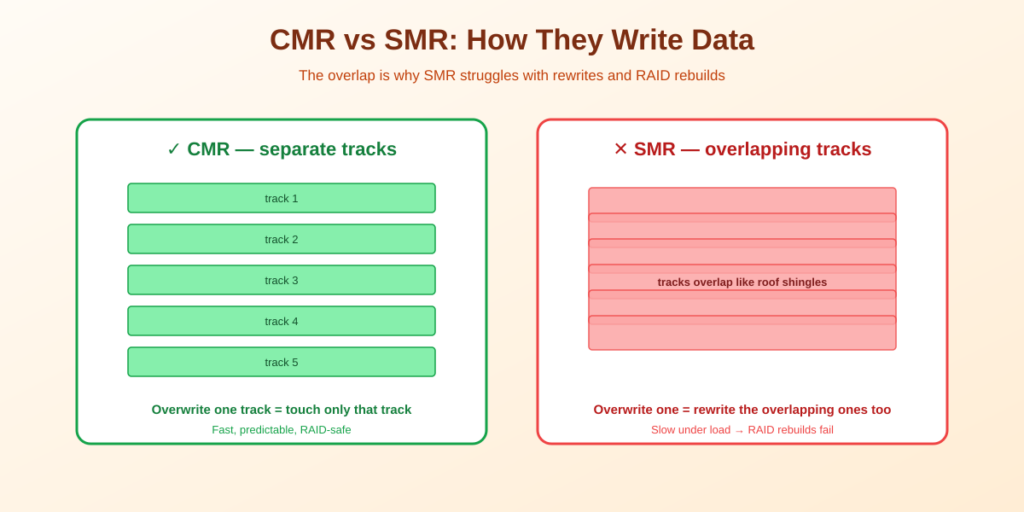
Before any brand or price, you need to understand how a drive writes data. There are two methods, and choosing the wrong one for a NAS can be catastrophic. This is the single most important thing about buying hard drives for a NAS.
- CMR (Conventional Magnetic Recording). Writes data on separate, non-overlapping tracks. It handles random writes and RAID rebuilds cleanly. This is what you want.
- SMR (Shingled Magnetic Recording). Overlaps data tracks like roof shingles to squeeze in more capacity cheaply. The catch: to overwrite any data, the drive must rewrite the overlapping tracks too — which is slow under sustained load.
⚠️ Why SMR destroys RAID arrays. During a RAID rebuild, the array writes huge amounts of data continuously. An SMR drive’s rewrite penalty makes this so slow that the NAS often assumes the drive has failed, kicks it out of the array, and can crash the entire storage pool mid-rebuild — exactly when your data is most vulnerable. Rebuilds that should take hours stretch into days, or fail outright. For any RAID or ZFS setup, SMR is a genuine data-loss risk. Always buy CMR.
The WD Red Naming Trap (Read This Before You Buy)
Here’s the mistake that catches people. In 2020, Western Digital was caught shipping SMR drives labeled as NAS drives in its plain ‘WD Red’ line — the WD Red controversy. They then split the line, but the confusing names remain a trap in 2026:
- WD Red (plain, no suffix) — AVOID. Still sold, still uses SMR in many capacities. Do not put this in a RAID array. If a listing just says ‘WD Red’ without ‘Plus,’ skip it.
- WD Red Plus — SAFE (CMR). The Plus suffix is Western Digital’s CMR home-NAS line. This is the one to buy.
- WD Red Pro — SAFE (CMR). CMR too, aimed at bigger, busier arrays. More than most home users need.
💡 The quick safety check: Seagate IronWolf and Toshiba N300 are CMR across their entire ranges — no naming traps. With Western Digital, you must see the word ‘Plus’ or ‘Pro.’ When in doubt, look up the exact model number on the manufacturer’s datasheet and confirm ‘CMR’ before you pay. Two minutes of checking prevents the worst NAS mistake there is.
The NAS Drives Worth Buying in 2026
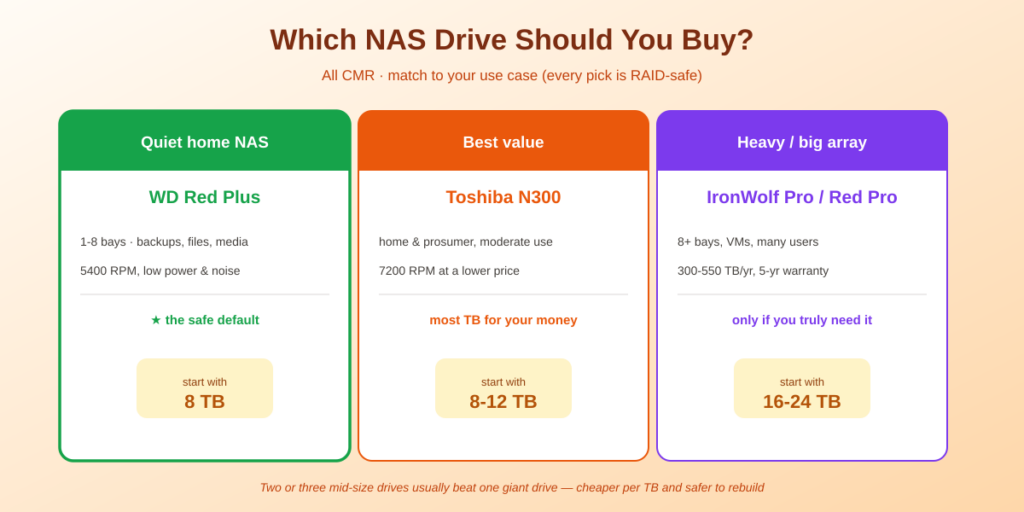
Three CMR drive families cover virtually every home NAS. All are rated for 24/7 operation, include vibration handling for multi-bay enclosures, and carry proper workload ratings — things desktop drives lack.
| Drive family | Recording | Workload / warranty | Best for |
|---|---|---|---|
| WD Red Plus | CMR | 180 TB/yr · 3-year | Quiet, low-power home NAS (1-8 bays). The safe default. |
| Seagate IronWolf | CMR | 180 TB/yr · 3-year | Home NAS with health-monitoring firmware; more high capacities. |
| Toshiba N300 | CMR | 180 TB/yr · 3-year | Best value; 7200 RPM at a lower price. |
| Pro versions (Red Pro / IronWolf Pro) | CMR | 300-550 TB/yr · 5-year | 8+ bays, VMs, or heavy multi-user writes. Overkill for most homes. |
For a typical home NAS running backups, files, and media, the standard (non-Pro) drives are plenty. The Pro versions add higher workload ratings and 5-year warranties that matter for busy 8+ bay arrays or virtualization, but for a quiet Plex-and-backups box you’d be paying for endurance you’ll never use.
What Capacity Should You Buy?
Bigger isn’t automatically better. After the drive price rises of late 2025, new NAS drives run roughly $25-30 per TB in 2026 (checked against retail listings, May 2026), but the value sweet spots and the risk trade-offs are worth understanding:
- 8 TB — the home sweet spot. Around $200-240, or roughly $25-30/TB, and a failure risks less data than a giant drive. A great default.
- 16-22 TB — lowest headline price per TB. The cheapest per terabyte of the sizes here, and ideal when you’re out of bays. But a single large drive failing puts far more data at risk during the (longer) rebuild.
- Under 12 TB vs over 12 TB. At 12 TB and above, drives switch to helium-sealed designs that run cooler. Below that, they’re air-filled — perfectly fine, just less dense.
💡 A smarter capacity strategy: Two or three mid-capacity drives usually cost less per terabyte than one giant drive — and they spread risk across more disks, so a single failure loses less and rebuilds faster. Unless you’re genuinely out of bays, prefer more moderate drives over one huge one. And always buy the capacity you need now; drive prices aren’t dropping meaningfully this year.
A Few Other Things That Matter
- RPM. Most NAS drives spin at 5400-5900 RPM, which runs cooler and quieter — ideal for a closet or bedroom. 7200 RPM (Pro drives) helps only for heavy Plex transcoding or VM storage.
- Multi-bay vibration. In enclosures with 4+ bays, drives shake each other. NAS drives counter this with rotational-vibration sensors (IronWolf) or firmware tuning (WD Red Plus NASware). Another reason to skip desktop drives.
- Don’t use desktop drives. They lack 24/7 workload ratings, vibration handling, and the RAID-friendly error-recovery timeouts that keep a drive from being wrongly dropped from an array.
One more, if you’re building a TrueNAS / ZFS box: use ECC RAM. ZFS checksums every block to catch corruption, but if non-ECC memory flips a bit, ZFS can write the bad data and a matching checksum — silently. ECC RAM prevents this. Budget roughly 1 GB of RAM per TB of storage.
Choosing the NAS itself or an OS to run it? See the best NAS for Plex and best home server OS guides.
Frequently Asked Questions About NAS Hard Drives
What’s the difference between CMR and SMR drives?
CMR (Conventional Magnetic Recording) writes data on separate tracks and handles random writes and RAID rebuilds cleanly. SMR (Shingled Magnetic Recording) overlaps tracks to fit more capacity cheaply, but must rewrite overlapping tracks on every overwrite, which is slow under sustained load. For a NAS — especially RAID or ZFS — always use CMR. SMR can cause RAID rebuild failures and data loss.
Why can’t I use SMR drives in a RAID array?
During a RAID rebuild, the array writes data continuously for hours. An SMR drive’s rewrite penalty makes this so slow that the NAS often thinks the drive has failed, drops it from the array, and can crash the whole storage pool mid-rebuild — when your data is most exposed. Rebuilds stretch from hours into days or fail outright. It’s a real data-loss risk, so use CMR.
Which WD Red drives are safe for a NAS?
WD Red Plus and WD Red Pro both use CMR and are safe for NAS and RAID. The plain ‘WD Red’ (no suffix) still uses SMR in many capacities and should be avoided in a RAID array — this dates to the 2020 WD Red controversy. Always look for the word ‘Plus’ or ‘Pro’ in the name, and confirm CMR on the datasheet before buying.
What are the best hard drives for a NAS in 2026?
The three safe CMR families are WD Red Plus (quiet, low-power, the safe default for 1-8 bay home NAS), Seagate IronWolf (CMR across the range, with health-monitoring firmware and more high-capacity options), and Toshiba N300 (best value). All are rated for 24/7 use with vibration handling. Standard versions suit most homes; Pro versions are for busy 8+ bay arrays.
What capacity NAS drive should I buy?
For home use, 8 TB is often the price-per-TB sweet spot and risks less data if a drive fails. Larger 16-22 TB drives have the lowest headline cost per TB and save bays, but a single failure puts more data at risk during a longer rebuild. Where possible, two or three mid-capacity drives beat one giant drive on both cost per TB and risk spreading.
Can I use regular desktop hard drives in a NAS?
Technically yes, but it’s not recommended. Desktop drives lack the 24/7 workload rating, multi-bay vibration compensation, and RAID-friendly error-recovery timeouts that NAS drives are built for. In a multi-drive always-on enclosure, a desktop drive is more likely to overheat, wear out early, or be wrongly dropped from a RAID array. The modest price difference is worth it.
Do I need Pro NAS drives or are standard ones enough?
For most home NAS use — backups, file serving, and media streaming — standard drives (WD Red Plus, IronWolf, N300) are plenty, with their 180 TB/year workload rating you’ll never hit. Pro drives add higher workload ratings (300-550 TB/year), 5-year warranties, and 7200 RPM speed, which matter for 8+ bay arrays, virtualization, or heavy multi-user writes, but are overkill for a quiet home server.
The Bottom Line
💾 Takeaway: The right hard drives for a NAS come down to one rule and one short list. The rule: always buy CMR, never SMR — SMR can destroy a RAID array during a rebuild. The list: WD Red Plus (never plain WD Red), Seagate IronWolf, or Toshiba N300, all CMR and NAS-rated. For most homes, 8 TB standard drives hit the sweet spot of price, safety, and quiet operation; skip the Pro versions unless you’re running a busy multi-bay array. Check the exact model says CMR before you pay, and you’ll have a NAS that protects your data for years.
Put those drives in the right box with the best NAS for Plex guide, then protect the data on them with a proper backup strategy — because RAID is not a backup.
How This Guide Was Researched
- The CMR vs SMR distinction and why SMR fails in RAID rebuilds verified across multiple 2026 NAS drive guides and storage references
- The WD Red naming situation (plain Red = SMR, Red Plus/Pro = CMR, dating to the 2020 controversy) confirmed across independent sources and WD’s own line split
- Drive family specs (WD Red Plus / IronWolf / N300 at 180 TB/yr and 3-year warranty; Pro versions at 300-550 TB/yr and 5-year) cross-referenced against manufacturer datasheets and 2026 comparisons
- Capacity value (8 TB home sweet spot ~$15-17/TB, new drives ~$18-22/TB, helium at 12 TB+) and the ECC-RAM-for-ZFS point drawn from current 2026 NAS and TrueNAS guides
Drive prices move week to week — always confirm the exact model is CMR on the manufacturer’s datasheet before buying, for example Western Digital’s product pages. This guide has no affiliate arrangement with these brands and earns nothing from them.
Questions about your setup? Email hello@selfhostlife.com.
Product links on this site are plain links. We earn nothing from them — see our disclosure policy.